Google Nest thermostat support has been one of the most-requested features from Emporia customers, and it’s finally here. You can now connect your Nest to the Emporia app and use it alongside your other Emporia devices — with the same energy management features that work across the rest of your home setup.
Here’s what that means and how to get started.
How to Connect Your Nest Thermostat
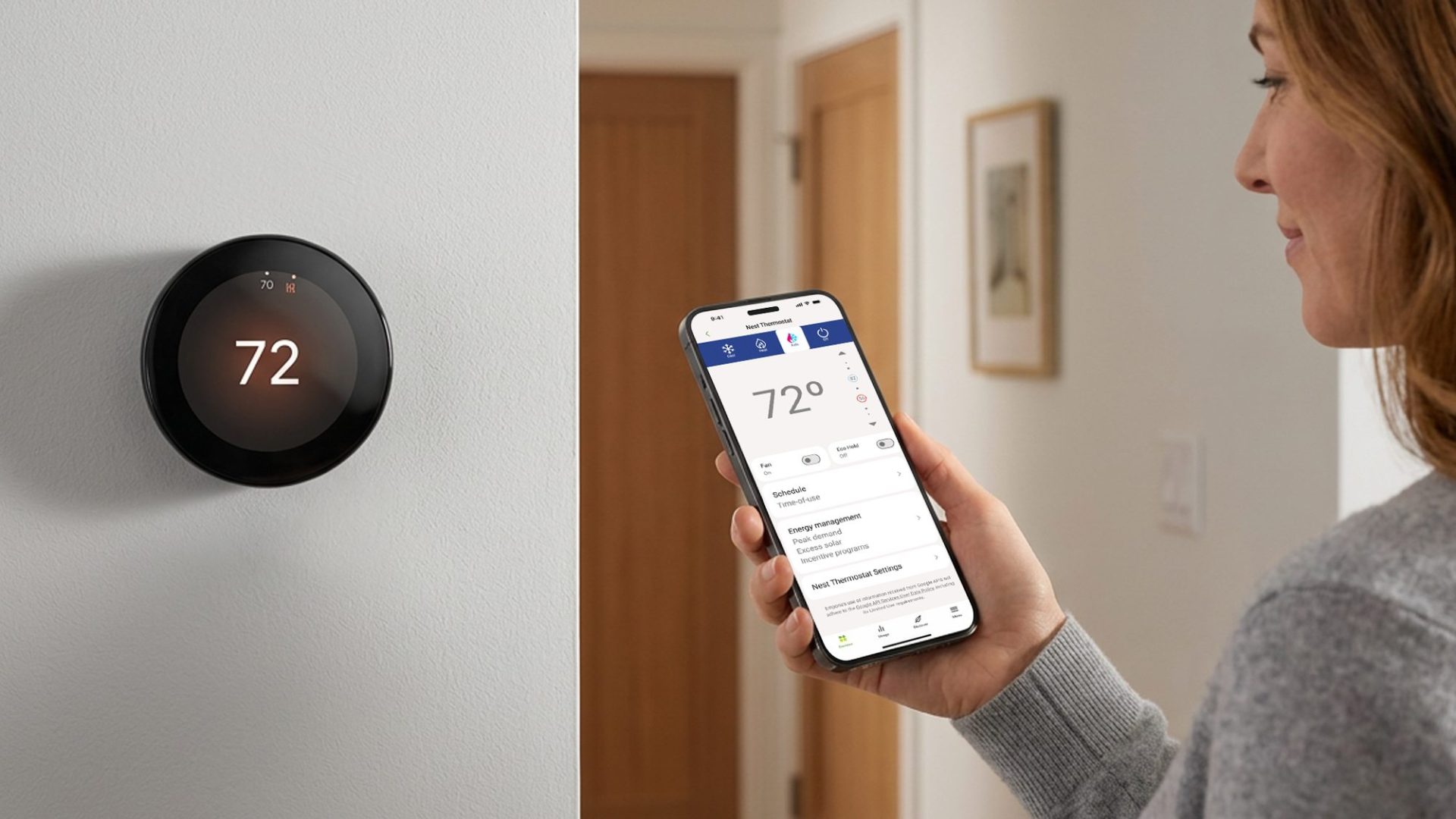
Setup follows the same path as our other supported thermostats: open the Emporia app, go to Menu > Add a Device > Thermostats > Nest, and follow the prompts to connect your Google account.
The connection uses a secure Google OAuth flow, which means you’re granting Emporia access through Google’s own permission system. You’ll be asked to allow access to your Google Home devices — that’s what lets the app communicate with your Nest. The process takes just a few minutes.
Once connected, your thermostat’s name and current temperature will appear in the app and stay synced with your Nest in real time. You can disconnect at any time from within the Emporia app or through Google’s Partner Connections Manager.
What You Can Do Once It’s Connected
Connecting your Nest to the Emporia app isn’t just about seeing it in one place. It makes your thermostat an active part of how your home manages energy — automatically, without you having to think about it.
Shift Heating and Cooling to Cheaper Hours with Smart Saver
Smart Saver automatically adjusts your thermostat based on your utility’s time-of-use rates. During off-peak hours, when electricity is cheaper, it pre-heats or pre-cools your home so it stays comfortable when rates go up. When peak hours hit, the thermostat backs off and lets the pre-conditioning do the work.
The result is that you’re using more energy when it costs less, and less when it costs more — without manually managing a schedule.
Keep Your Home’s Energy Demand in Check
If you have a Vue energy monitor installed, you can set a Peak Demand Goal in the Emporia app. When your home’s total energy load approaches that threshold, the app automatically adjusts connected devices — including your Nest thermostat — to keep demand under control.
This is particularly useful if your utility charges demand fees: extra charges based on the highest amount of energy you draw at any one moment. Keeping demand from spiking can meaningfully reduce those charges.
Put Your Solar Production to Work
For homes with solar panels, the Emporia app can route excess generation to your thermostat instead of exporting it to the grid. On high-production days, it’ll heat or cool your home using the energy your panels are already producing.
This is Excess Solar Optimization: rather than selling that energy back at a low rate (or giving it away entirely), you’re using it to pre-condition your home for free.
A Note on Eco Hold
Nest thermostats have a feature called Eco Hold, which limits remote control when the thermostat is in an energy-saving mode. The Emporia app handles this gracefully — if Eco Hold is active, certain controls will be temporarily unavailable, and the app makes that clear rather than leaving you guessing.
Part of Your Whole Home Energy Setup
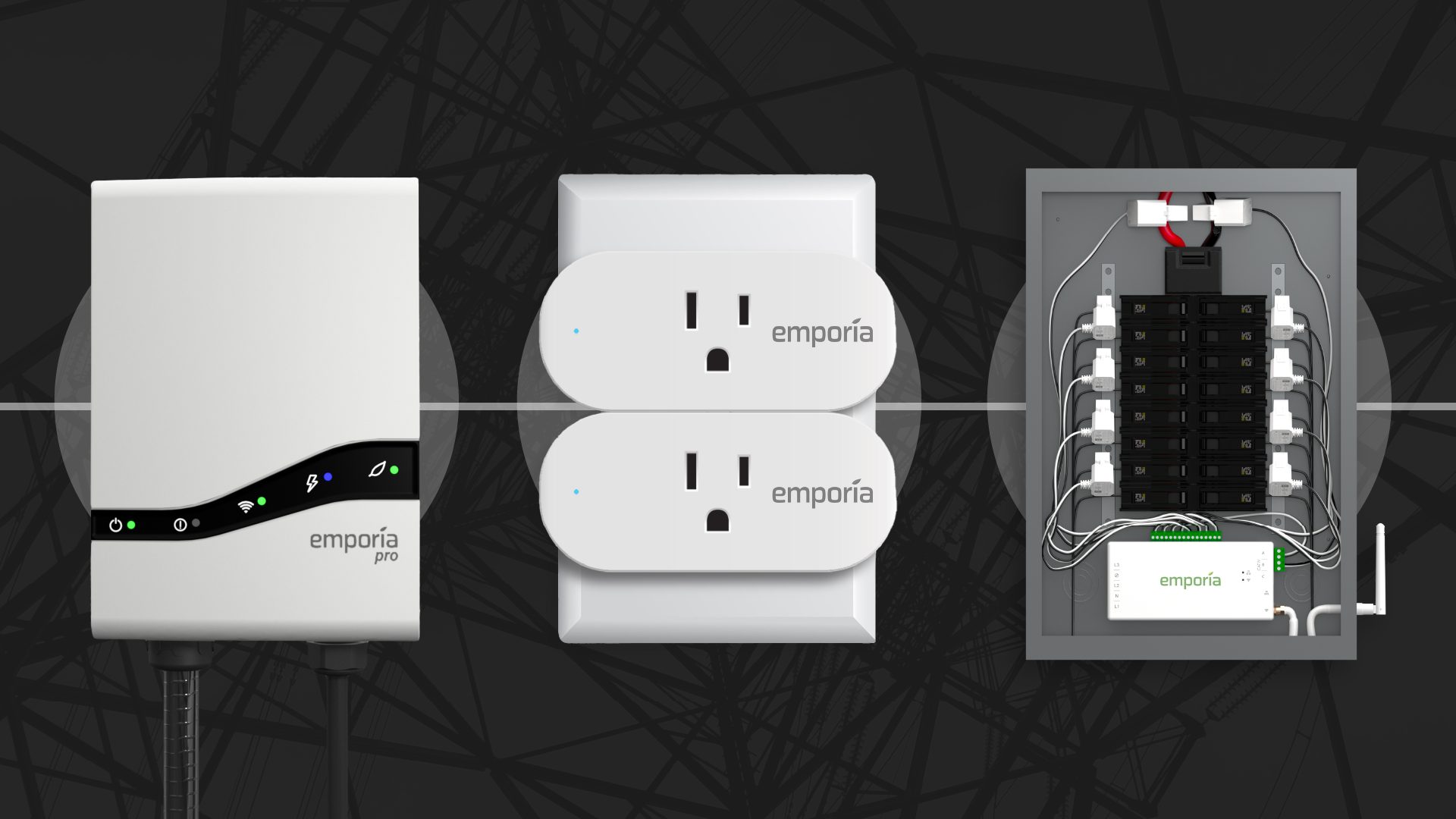
If you’re already using the Emporia app for your EV charger, Vue energy monitor, or smart plugs, your Nest thermostat fits right into the same setup. The same automations that manage your charger and devices can now include your thermostat — one app, one set of rules, one view of what’s happening.
For a deeper look at how the thermostat energy management features work, see our thermostat features overview.
Connect Your Nest Today
If you have a Google Nest thermostat, you can add it to the Emporia app right now. Open the app, go to Menu > Add a Device > Thermostats > Nest, and follow the steps to connect.
Don’t have the Emporia app yet? Download it for iOS or Android and get started.
Your home energy, all in one place.
Monitor usage, control your devices, and track costs from anywhere in the free Emporia app.